Reading offline on iPhone and iPad means having article text and images stored on your device before you lose connection. Whether you are on a flight, in a subway tunnel, or deliberately disconnecting for focus, offline reading turns dead time into finished articles. This guide explains how offline reading works, what to prepare in advance, and how PagePanda handles cached content on Apple devices.
Offline reading on iPhone at a glance
| Question | Answer |
|---|---|
| What is offline reading? | Opening saved article text and images without an active internet connection. |
| What do you need first? | A successful download while connected. Content must be fetched before you go offline. |
| Which apps support it? | Read-later apps (PagePanda, Instapaper), Safari Reading List (with offline saving enabled), and some news apps. |
| Does it work for every website? | No. Extraction depends on the source page. Paywalled or unsupported pages may not cache. |
| Does it sync across devices? | Library records can sync; cached files are typically device-local. |
How does offline reading work on iPhone and iPad?
Offline reading is not magic—it is local storage. The process has three stages:
1. Save the article while connected
You send a URL to a read-later app through the Share Sheet, paste it directly, or import it from a file. The app records the article in your library.
2. Download readable content
The app fetches the source page and extracts the article text, images, and formatting it can parse. This download happens in the background after saving. If extraction fails—because the site blocks it, requires login, or uses an unsupported format—the article may remain a link without readable offline content.
3. Read without a connection
Once cached, the article opens from local storage. No Wi-Fi or cellular data is required. Your reading progress, highlights, and notes are also stored locally and can sync through iCloud when enabled.
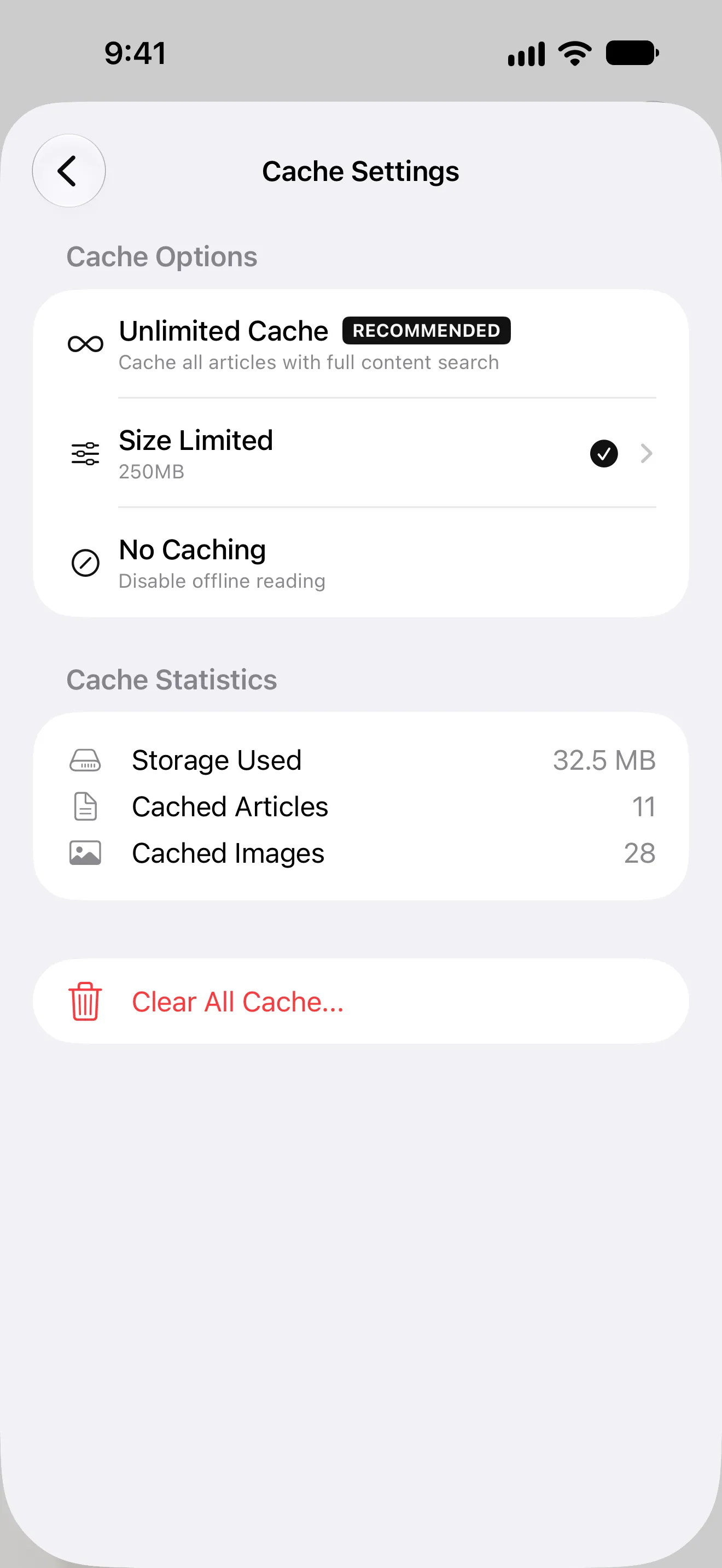
PagePanda downloads readable article content and caches supported images on the device. You can manage cache size in settings, with a fixed 250 MB option on the Free plan and expanded choices in PagePanda Pro.
When is offline reading most useful?
| Situation | Why offline matters |
|---|---|
| Flights and air travel | Airplane mode eliminates connectivity for hours |
| Subways and tunnels | Cellular and Wi-Fi drop frequently underground |
| International travel | Roaming costs or unavailable local data |
| Rural or remote areas | Unreliable or absent network coverage |
| Deliberate disconnection | Reading without notification temptation |
| Commutes | Transit dead zones between stations |
Offline reading turns these gaps into reading time rather than idle scrolling.
How do you prepare articles for offline reading?
Preparation is simple but easy to forget. Follow these steps before you lose connection:
Save articles while you still have Wi-Fi
Do not wait until boarding to add articles. Save items throughout the day or the evening before travel. PagePanda downloads content after saving, but large libraries take time to cache completely.
Confirm articles have downloaded
Open a few saved articles while connected and verify they display readable content—not just a title and URL. Articles that failed extraction will not have offline text available.
Choose articles appropriate for the context
A flight with four hours offline suits long essays and multi-part tutorials. A twenty-minute subway ride suits shorter pieces. PagePanda’s Quick Reads section highlights shorter unread articles that may fit limited windows.
Manage cache storage before a trip
If you are caching many articles, check your cache size settings. PagePanda Pro offers expanded, disabled, and unlimited cache options. Clearing the cache removes local offline files but does not delete saved articles from your library—you can re-download them when connected.
How does PagePanda handle offline reading?
PagePanda is designed for offline access to successfully cached content on iPhone, iPad, and Mac.
What gets cached
- Readable article text extracted from the source page.
- Supported article images downloaded during caching.
- Your reading progress, highlights, and notes (stored locally and optionally synced via iCloud).
What does not get cached
- The original webpage layout, ads, and navigation chrome.
- Content from sites that block extraction or require authentication PagePanda cannot provide.
- Paywalled articles unless the source makes readable content available to the fetch process.
- Video embeds and interactive elements that depend on a live connection.
Cache versus library sync
These are separate systems:
| Data type | Storage | Syncs via iCloud? |
|---|---|---|
| Article metadata (title, URL, tags, shelves) | Local + optional iCloud | Yes |
| Reading progress and highlights | Local + optional iCloud | Yes |
| Downloaded article cache files | Device-local only | No |
An article saved and synced to your iPad through iCloud will appear in your iPad library, but the readable offline copy must be downloaded on the iPad separately. Do not assume that caching on one device automatically places the offline file on every other device.
Cache management
| Plan | Cache options |
|---|---|
| Free | Fixed 250 MB cache |
| PagePanda Pro | Expanded size, disabled, and unlimited choices |
Clearing the cache frees device storage. Saved articles remain in your library and can be re-downloaded when connected.
How does Safari Reading List compare for offline reading?
Safari Reading List is Apple’s built-in save-for-later feature. It can work offline when offline saving is enabled or when an item is explicitly saved for offline access. Apple’s iPhone guide to Reading List, checked October 18, 2026, says saved Reading List items can be read without an internet connection, and that Automatically Save Offline stores the list for offline reading.
| Capability | Safari Reading List | PagePanda |
|---|---|---|
| Offline reading | Yes, with offline saving enabled | Yes, for successfully cached articles |
| Designed reader | Safari Reader appearance controls | Eight Reader Styles plus themes and fonts |
| Organization | Chronological list | Shelves, tags, and curated Home sections |
| Highlights and notes | Limited compared to dedicated apps | Full highlight and note support |
| Progress tracking | Basic read/unread | Saved position with Continue Reading |
| Cross-app saving | Safari and some Share Sheet sources | Share Sheet, Mac Share menu, URL paste, Shortcuts |
Safari Reading List is sufficient for light saving within Apple’s browser. A dedicated read-later app becomes more useful when you save from many apps, want deeper organization, or need a designed reader with progress tracking and habit tools.
See the Safari Reading List alternative guide for a detailed comparison.
What are the limits of offline reading?
Honest boundaries prevent disappointment:
- Not every site works. Some pages use formats that resist extraction. Others require login or block automated fetching.
- Paywalls are not bypassed. PagePanda does not promise access to content behind paywalls unless the source makes it available.
- Content can disappear. If a publisher removes or changes a page, the cached copy reflects what was available at download time. PagePanda does not permanently archive third-party content.
- Storage is finite. Device storage and cache settings limit how much you can keep offline simultaneously.
- Initial download requires connectivity. You cannot cache an article you have never fetched.
These limits apply to every read-later app, not just PagePanda.
How do you read offline effectively?
Batch-save before disconnecting
The evening before a flight or trip, save five to ten articles you genuinely want to read. Verify a few open correctly. Resist the urge to save fifty items “just in case”—a focused offline queue is more likely to get read.
Use Reader Styles for comfort
Long offline sessions demand comfortable typography. PagePanda’s Reader Styles reshape the complete article design, which can reduce eye fatigue during extended reading. See What are Reader Styles? for details.
Highlight and note while offline
Highlights and notes work without a connection. They are stored locally and sync through iCloud when available. This makes offline reading productive, not just consumptive—you can capture ideas during a flight and revisit them later.
Resume across sessions
Saved reading progress means you can read part of an article offline, close the app, and continue exactly where you stopped—whether offline or back online.
Related PagePanda reading guides
- How to manage your read-later backlog without stress.
- How to build a reading habit without pressure for calmer consistency.
- Instapaper alternative for iPhone and Mac for another offline-capable option.
Frequently asked questions
Can you read saved articles offline on iPhone?
Yes, with a read-later app that downloads article content to your device. PagePanda caches readable text and supported images after a successful download, so previously cached articles can be opened without a connection.
Does Safari Reading List work offline?
Safari Reading List can work offline when offline saving is enabled or an item is explicitly saved for offline access. Apple documents automatic offline-saving settings on iPhone, iPad, and Mac, but a page must be downloaded before the connection disappears.
Do you need Wi-Fi to download articles for offline reading?
An internet connection is required to fetch and download article content initially. After caching, the readable text and downloaded images can be opened without Wi-Fi or cellular data.
How much storage does offline reading use?
Storage depends on the number and size of cached articles. PagePanda's Free plan uses a fixed 250 MB cache option. PagePanda Pro offers expanded, disabled, and unlimited cache size choices.
Does offline reading sync between devices?
Library metadata can sync through optional iCloud, but downloaded article cache files are device-managed. An article cached on your iPhone may need to be downloaded separately on your iPad or Mac.