Most reading apps let you change the font size and switch between light and dark mode. Reader Styles go further: they reshape how an entire article looks and feels—from headings and paragraph spacing to quotes, lists, and tables. This guide explains what Reader Styles are, how they differ from themes, and why article design matters for comfortable reading.
Reader Styles at a glance
| Question | Answer |
|---|---|
| What is a Reader Style? | A complete article design, not just a font or color preset. |
| How many does PagePanda offer? | Eight: Standard, Magazine, Elegant, Modern, Vintage, Minimal, Artistic, and Academic. |
| Which is free? | Standard. The other seven require PagePanda Pro. |
| How is it different from a theme? | Themes control color environment. Styles reshape layout and element treatment. |
| Can the same article look different? | Yes. The same saved article can feel like a magazine feature, academic paper, or minimal essay. |
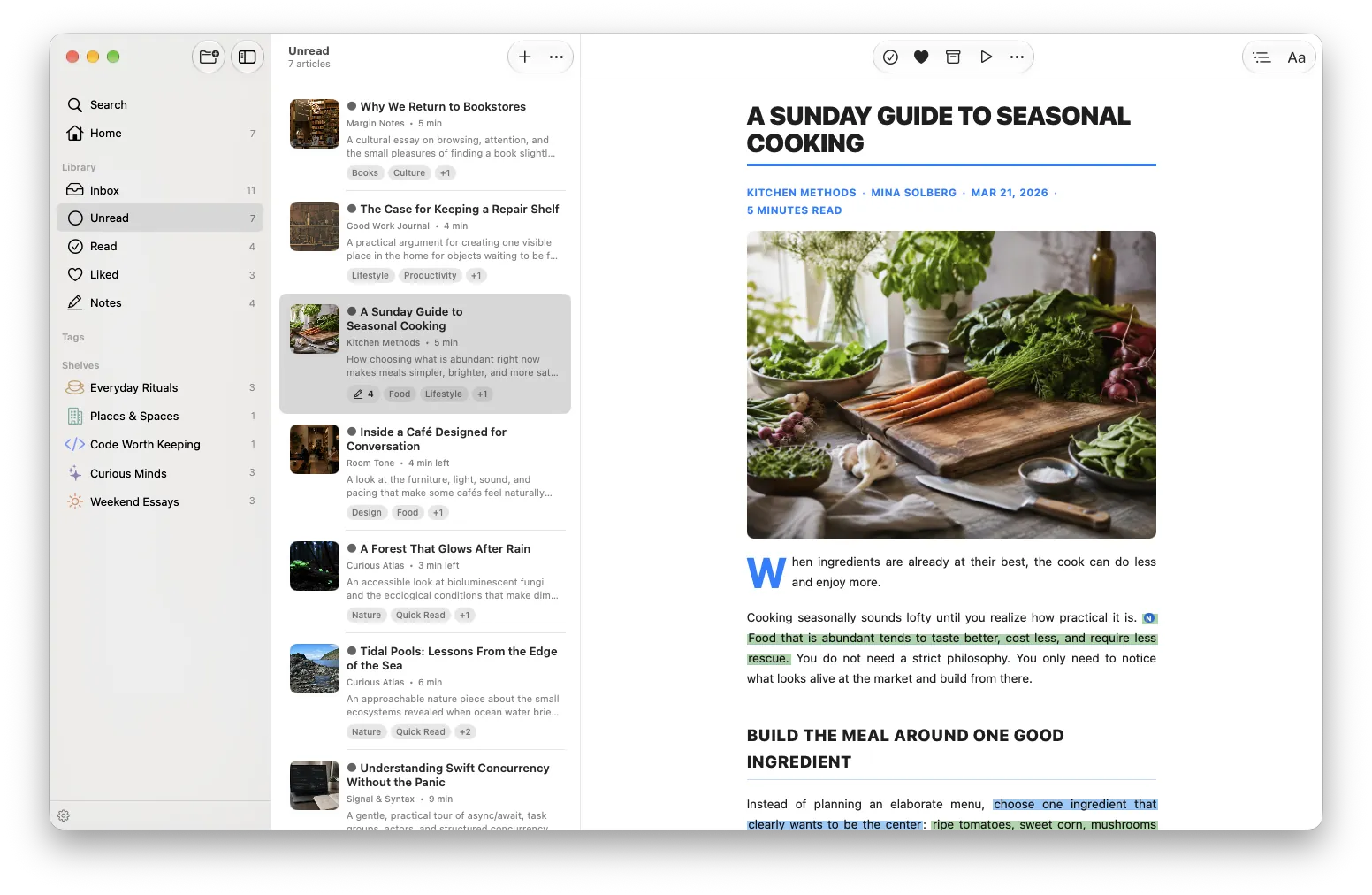
What is the difference between a theme, a font, and a Reader Style?
These three controls are often confused because they all affect how text appears on screen. They solve different problems.
Themes control color environment
A theme changes the background and text colors—light mode, dark mode, gray tones, and similar palettes. Themes make reading comfortable in different lighting conditions. They do not change how headings are sized, how blockquotes are indented, or how tables are bordered.
PagePanda’s Free plan includes Light and Gray themes. PagePanda Pro unlocks all implemented themes.
Fonts control typeface
A font changes the character shapes used for body text and headings. Serif fonts like Charter can feel traditional and book-like. System fonts feel native to the device. Font choice affects readability and personal preference, but it does not change paragraph width, heading scale, or list formatting on its own.
PagePanda’s Free plan includes System and Charter fonts. Pro unlocks additional fonts.
Reader Styles control complete article design
A Reader Style transforms the full presentation of an article:
- Typography and font family.
- Heading treatment and hierarchy.
- Font sizing and line height.
- Paragraph spacing and article width.
- Text alignment.
- Links, inline quotations, and blockquotes.
- Lists and tables.
- Visual accents and layout character.
The same article in Magazine style may use bold heading typography and stylish spacing. In Academic style, it may use numbered sections and formal journal surfaces. In Minimal style, it strips decoration to maximize focus on the words.
PagePanda Reader Styles transform the full appearance of an article—from typography and spacing to quotes, links, lists, and tables—so the same article can feel completely different.
Why does article layout affect reading?
Reading comfort depends on more than font size. Line length, spacing, and heading treatment change how tiring a page feels to read.
Line length and spacing
Lines that are too wide force the eye to travel farther across the screen. Matthew Butterick’s Practical Typography, checked October 18, 2026, makes the same point: as a line gets longer, the eye has to travel farther from the end of one line to the start of the next, which makes vertical tracking harder. Lines that are too narrow create frequent line breaks that interrupt rhythm. Generous line height and paragraph spacing reduce the feeling of a dense wall of text.
Reader Styles set these values as part of a cohesive design rather than leaving you to adjust each property manually.
Heading hierarchy
Clear heading treatment helps you scan an article’s structure before committing to a full read. Styles that differentiate heading levels with size, weight, and spacing make long tutorials and essays easier to navigate—especially when combined with a table of contents.
Quotes, lists, and tables
Articles are not only paragraphs. Interview quotes, bulleted steps, comparison tables, and callout blocks all need distinct visual treatment. A style that handles these elements thoughtfully keeps you in the reading flow instead of making every block look like body text.
Device context
An article that feels right on an iPhone may feel cramped or sparse on a Mac. PagePanda’s native apps on iPhone, iPad, and Mac adapt the reader to each platform while preserving your chosen style.
What Reader Styles does PagePanda include?
PagePanda implements eight Reader Styles:
| Style | Access | Character |
|---|---|---|
| Standard | Free | Clean, simple reading experience |
| Magazine | Pro | Bold typography with stylish layouts |
| Elegant | Pro | Sophisticated serif styling with refined spacing |
| Modern | Pro | Swiss-inspired grid with sharp modular structure |
| Vintage | Pro | Classic newspaper-inspired typography |
| Minimal | Pro | Ultra-clean with maximum focus on content |
| Artistic | Pro | Art-book layout with gallery accents and expressive typography |
| Academic | Pro | Formal journal layout with numbered sections and research surfaces |
You can switch styles while reading to find what suits the article and your mood. Reading with a different Reader Style is also recognized by PagePanda’s Achievement system.
When should you use different Reader Styles?
There is no single best style for every article. These pairings are a useful starting point:
| Article type | Style to try | Why |
|---|---|---|
| Long-form essay or profile | Magazine or Elegant | Distinctive typography and generous spacing suit narrative pieces |
| Technical tutorial | Standard or Modern | Clear hierarchy and modular structure help scan steps and code |
| Research paper or analysis | Academic | Formal sections and numbered headings match the content type |
| Short opinion piece | Minimal | Strips decoration so the argument stays central |
| Photo-heavy feature | Artistic | Gallery accents complement visual storytelling |
| News or current events | Vintage or Magazine | Newspaper or magazine character fits timely reporting |
Experimentation is part of the value. The same saved article can feel like a different publication depending on the style you choose.
How do Reader Styles compare to basic reader modes?
Safari Reader, browser reading modes, and many read-later apps offer font size, font family, and background color controls. These are useful baseline tools.
Reader Styles address a different question: not “can I read this?” but “how do I want this article to feel?”
For readers who save diverse content—essays, tutorials, interviews, research summaries, and news—the ability to match article design to content type can make returning to saved reading more enjoyable. Enjoyment matters for habit-building: you are more likely to finish an article that feels comfortable than one that looks like a generic webpage squeezed into a narrow column.
Do Reader Styles work with other reading tools?
Reader Styles work alongside other PagePanda reading features:
- Saved reading progress persists regardless of style.
- Table of contents remains available when the article contains usable headings.
- Highlights and notes stay attached to the article across style changes.
- Enhanced code formatting in PagePanda Pro applies to detected code blocks within any style.
- Offline cached content displays in your chosen style without a connection.
Themes and fonts can be adjusted within a style. Remember that styles reshape layout while themes primarily control the color environment—they are complementary, not interchangeable.
Who benefits most from Reader Styles?
Reader Styles are most valuable for readers who:
- save articles across many genres and formats;
- read on multiple Apple devices and want a consistent, designed experience;
- find basic font-and-color controls insufficient for long reading sessions;
- want reading to feel intentional rather than like repurposed webpage text; and
- build a daily reading habit and need the experience to stay inviting over time.
If you only save short news items and read them once, Standard style and basic controls may be enough. If your library contains long essays, technical tutorials, and research pieces you return to over weeks, the additional styles can meaningfully improve comfort.
Related PagePanda reading guides
- How to build a reading habit without pressure for calmer consistency.
- Read-it-later app for developers for technical reading with syntax highlighting.
- Instapaper alternative for iPhone and Mac to compare reader customization approaches.
Frequently asked questions
What is a Reader Style?
A Reader Style is a complete article design that changes typography, spacing, heading treatment, quotes, lists, tables, links, and visual accents—not just the font or background color. PagePanda includes eight Reader Styles.
How are Reader Styles different from themes?
Themes primarily control the reading color environment, such as light or dark backgrounds. Reader Styles reshape the full layout and element treatment of an article. They are separate features in PagePanda.
Which Reader Styles are free in PagePanda?
The Standard Reader Style is included in the Free plan. Magazine, Elegant, Modern, Vintage, Minimal, Artistic, and Academic require PagePanda Pro.
Do Reader Styles affect reading comprehension?
Typography and layout can influence reading comfort, speed, and retention, especially for long articles. The best style depends on the content, your preferences, and the device you are using.
Can I switch Reader Styles for different articles?
Yes. PagePanda lets you choose a Reader Style while reading and apply different styles to different articles based on your preference.