A useful read-it-later app for developers should preserve the structure of technical articles, make code blocks easy to distinguish and copy, remember where you stopped, and keep the material available when your connection is unreliable. PagePanda is an iPhone, iPad, and Mac reading app that adds those foundations, with enhanced code formatting and deeper navigation in PagePanda Pro.
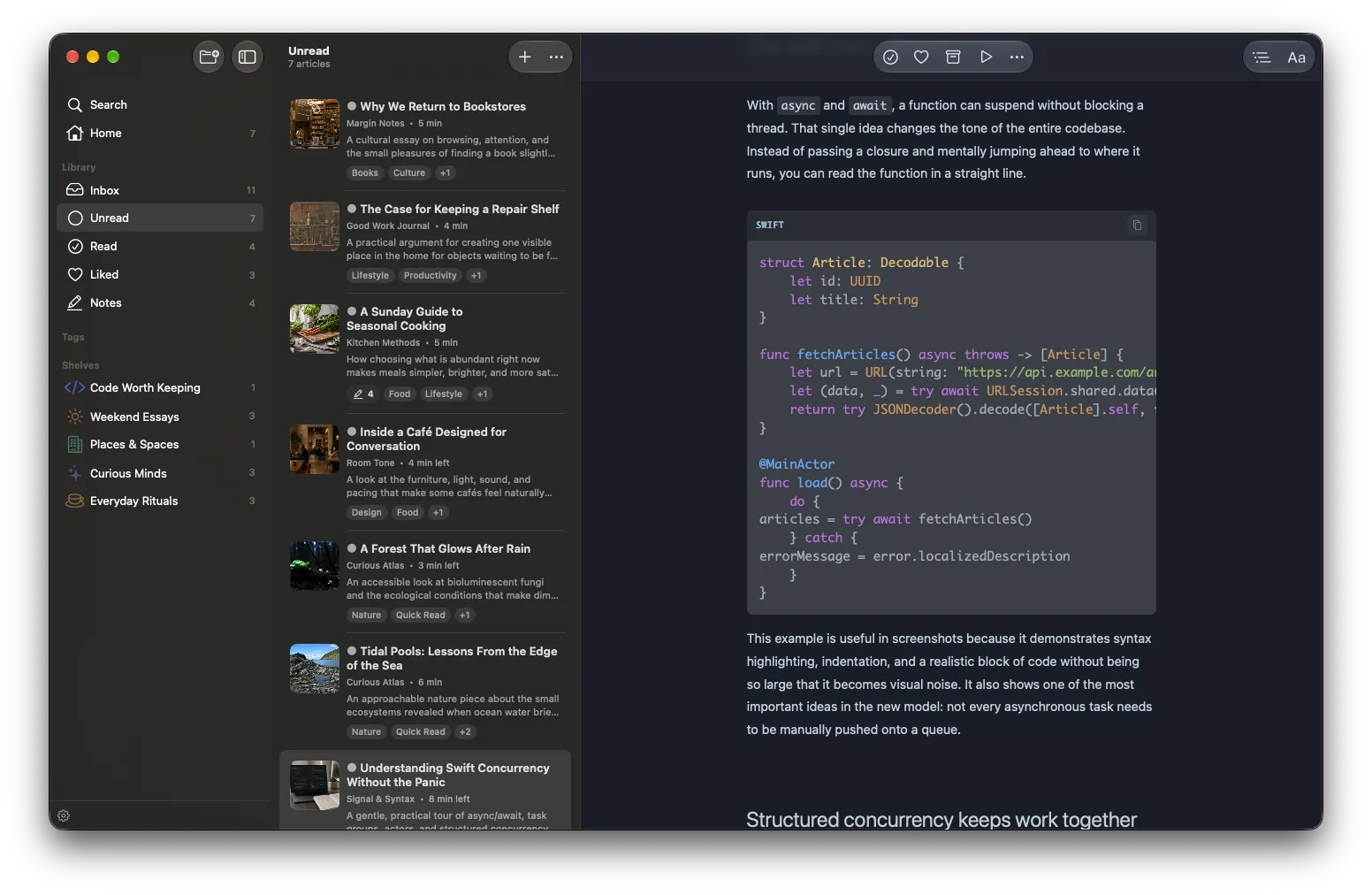
What should a developer-focused read-later app provide?
Programming articles are rarely just continuous prose. They combine explanations with commands, code blocks, tables, diagrams, warnings, links, and sequences of steps. A reader that handles only paragraphs can make a useful tutorial harder to follow than it was on the source site.
Use this checklist when evaluating an app for saved technical reading:
| Need | Why it matters for technical articles | PagePanda support |
|---|---|---|
| Clear code blocks | Code should remain visually separate from the explanation | PagePanda Pro adds syntax highlighting and language labels |
| Complete code copying | Selecting a long block by hand is error-prone | PagePanda Pro adds a copy action for the complete block |
| Article navigation | Tutorials may contain many sections and prerequisites | Table of contents when headings are available; heading navigation is Pro |
| Find in Article | A function name or configuration key may need to be located again | Included with PagePanda Pro |
| Saved progress | Long tutorials are often read across several sessions | Reader position and progress are saved |
| Offline reading | Documentation may be needed on a commute, flight, or unreliable network | Successfully cached text and downloaded images remain device-local |
| Highlights and notes | Decisions and useful explanations should stay connected to the source | Up to 25 highlights in Free; no app-enforced count limit in Pro |
| Library search | A saved title may not contain the term you remember | Title and summary search in Free; cached article-content search in Pro |
Not every developer needs every item. If you save only short release notes, a basic bookmark list may be enough. The fuller checklist becomes useful when your library contains multi-part tutorials, engineering posts, language proposals, architecture explanations, or reference material you expect to revisit.
Why do code-heavy articles need a different reading approach?
Technical reading often moves between two modes. First, you build a mental model from the prose. Then you inspect a concrete example closely enough to understand how that model becomes code.
Poor visual separation makes those modes collide. If indentation is hard to see, code looks like ordinary text, or a long block cannot be copied cleanly, the mechanics of reading interrupt the idea you are trying to understand.
Syntax highlighting does not prove that code is correct, and it does not replace careful reading. Its practical role is to make different parts of a code block easier to distinguish. A language label provides context when an article switches between formats. A copy action reduces the need to drag a selection across a long example.
PagePanda Pro applies these enhancements to code blocks it can detect in a saved article. Its bundled formatter supports more than 190 programming and markup languages. Source quality still matters: content must first be fetched successfully, and code must be represented in a form that PagePanda can identify.
How can navigation make a long tutorial easier to finish?
A technical article does not always need to be read from the first word to the last. You may already know the setup, need one implementation section, or return later to verify a specific step.
When an article contains usable headings, PagePanda can extract a table of contents. Free users can view and expand or collapse that outline. PagePanda Pro adds navigation from a table-of-contents heading to the corresponding article section.
Find in Article, also a Pro feature, solves a different problem. The table of contents helps with the author’s structure; Find helps when you remember a symbol, error string, API name, or command that may be buried inside a section.
Neither feature is guaranteed for every webpage. A table of contents depends on the article exposing meaningful headings, while Find can search only content that PagePanda successfully cached.
What is a practical way to read a saved technical article?
You do not need to give every saved tutorial the same amount of attention. A multi-pass approach can help you decide what the article deserves before you spend time on every detail.
Computer scientist S. Keshav describes a structured three-pass method in How to Read a Paper. His method was written for research papers, not programming blogs, but its central idea adapts well: begin with orientation, then understand the content, and reserve deep reconstruction for material that is important enough.
Pass one: decide what the article can give you
Read the title, introduction, headings, and conclusion. Inspect the code-block labels and diagrams without trying to understand every line.
Ask:
- What problem is the author solving?
- Which language, framework, and version does the article assume?
- Is the article conceptual, procedural, or a reference?
- Does it still apply to the version you use?
- Which section contains the answer you originally saved it for?
At the end of this pass, you can archive an irrelevant article, keep it for reference, or commit to a closer read. That decision is useful progress; finishing every saved item is not the goal.
Pass two: follow the explanation and examples
Read the relevant sections in order. Pause at each code block and connect it to the claim immediately before or after it.
Highlight only the parts you are likely to need again: an important constraint, the reason behind a design choice, or a compact explanation that would be difficult to reconstruct. Attach a short note when the passage matters for a particular project or when you disagree with an assumption.
PagePanda keeps those highlights and notes attached to the article. The Free plan supports up to 25 highlights, including optional notes. PagePanda Pro removes that app-enforced limit. Notes can be exported as plain text, Markdown, or HTML.
Pass three: verify what matters outside the reader
When an article will influence production code, leave the reader and verify the important parts in the appropriate environment. Check the current official documentation, inspect package or platform versions, and run examples in a safe project you control.
PagePanda Pro can copy a complete detected code block, but the app deliberately stops there. It does not execute the code, install dependencies, check security, confirm API availability, or tell you whether the example is appropriate for your system.
This separation is important: PagePanda supports reading and retrieval. Your development tools support testing and implementation.
How do offline access and saved progress fit technical reading?
Technical articles are often saved when there is no time to read them carefully. The real reading happens later—on a train, between meetings, away from a desk, or during focused research.
PagePanda downloads readable article content and caches supported images on the device. Once an article has been fetched successfully and remains cached, you can open that local copy without a reliable connection. This can make a long commute useful for understanding an architecture post even when running its examples must wait.
Offline access has boundaries. PagePanda does not promise to extract every site, bypass a paywall, or preserve third-party content permanently. If a source blocks extraction or disappears before the article is downloaded, the readable copy may not be available. Clearing PagePanda’s cache removes the local offline files but not the saved library record.
Reading progress is stored separately from the article cache. PagePanda remembers position and can surface unfinished material in Continue Reading. Optional iCloud sync can keep supported library data and progress available across your Apple devices, while downloaded article files remain device-managed and may need to be fetched separately on each device.
How should developers organize saved articles?
Start with fewer categories than you think you need. Shelves can represent stable areas such as iOS, Backend, Security, or Research. Tags can capture details that cut across those areas, such as Swift concurrency, database migration, performance, or testing.
Use reading state for workflow rather than reproducing it with tags. An unfinished tutorial already belongs in Continue Reading. A short saved post may appear in Quick Reads. Older unread material can surface through Backlog Cleanup. Archive an article when you have finished with the active reading decision but still want it searchable.
The Free plan supports up to five custom shelves and ten tags. PagePanda Pro removes those app-enforced count limits. Free search covers titles and summaries; Pro can also search successfully cached article content.
The purpose of this organization is retrieval, not classification for its own sake. If a tag will not help you choose or find an article later, you probably do not need it.
Which technical-reading features are Free and Pro?
PagePanda’s core saving and reading workflow is part of the Free plan. That includes saving supported articles, reading cached content, saved progress, the Standard Reader Style, basic table-of-contents visibility, highlights up to the Free limit, shelves, tags, and title or summary search.
PagePanda Pro adds the features most directly aimed at dense technical material:
- syntax highlighting for detected code blocks;
- language labels and complete-block copy actions;
- table-of-contents heading navigation;
- Find in Article;
- search across successfully cached article content;
- additional Reader Styles, themes, fonts, and alignment controls; and
- removal of the app-enforced Free limits for highlights, tags, and custom shelves.
These features can make technical articles easier to navigate and reuse, but they do not turn PagePanda into a development environment or an AI assistant.
Is PagePanda the right read-it-later app for every developer?
PagePanda may fit developers who read mainly on iPhone, iPad, and Mac; want a native Apple-platform experience; save long code-heavy articles; value offline access; and prefer a reading app without an account or AI processing.
It does not fit a workflow that requires Android, a browser-based library, team collaboration, AI summaries, PDF research management, code execution, or automatic validation of examples. PagePanda is a general reading app with strong technical-article support, not a developer knowledge base.
If you are replacing a discontinued library rather than starting fresh, read the Pocket alternative guide. If most of your saved pages currently live in Apple’s browser, the guide to choosing a Safari Reading List alternative explains when a dedicated reading library may help.
Related PagePanda reading guides
- Best read-it-later apps for iPhone, iPad, and Mac in 2026 for Pocket, Instapaper, Matter, and Safari Reading List side by side.
Frequently asked questions
What should developers look for in a read-later app?
Look for reliable saving, readable code blocks, navigation through long articles, saved progress, offline access, search, and a way to keep highlights or notes with the source. Platform support and privacy should also match your actual workflow.
Does PagePanda add syntax highlighting?
PagePanda Pro enhances detected code blocks with syntax highlighting, a language label, and a quick action for copying the complete block. The Free plan displays article code without those Pro enhancements.
How many programming languages does PagePanda support?
PagePanda Pro's bundled code formatter supports more than 190 programming and markup languages. Detection still depends on the source article providing code that PagePanda can identify as a code block.
Can PagePanda run copied code?
No. PagePanda is a reading app, not an editor, compiler, runtime, or AI coding assistant. It can format and copy a code block, but it does not execute, validate, explain, or generate code.
Is PagePanda available on Android or the web?
No. PagePanda is available on iPhone, iPad, and native macOS. Android and web apps are not planned, so developers who require those platforms should choose a cross-platform alternative.