Safari Reading List is the simplest way to save a webpage for later on an Apple device. It is built into Safari, needs no extra app, and can work offline. When it works, it is great. When it does not, you board a flight and find “You are not connected to the internet,” or you save an article on your Mac and it never appears on your iPhone.
This guide walks through the fixes in order, from quickest to most thorough, using the settings Apple documents. At the end, there is an honest look at when a dedicated read-later app is the better fix.
Steps checked against Apple Support guides “Save webpages to read later in Safari on iPhone” (iOS 26), “Keep a Reading List in Safari on Mac”, “Set up iCloud for Safari on all your devices”, and “If your iCloud or Safari bookmarks aren’t syncing” (support.apple.com/111761) on October 20, 2026.
Quick checklist
If you only have a minute, check these first:
- iPhone/iPad: Settings → Apps → Safari → turn on Automatically Save Offline (under Reading List).
- Mac: Safari → Settings → Advanced → select Save articles for offline reading automatically.
- Every device: signed in with the same Apple Account, with Safari turned on in iCloud.
- Open each article once while connected before you go offline.
- Turn off any VPN temporarily if sync seems stuck.
The details for each step are below.
Why Safari Reading List is not available offline
Reading List saves a link immediately, but the offline copy is a separate download. If that download never happened, the item is just a link, and a link needs a connection. That usually comes down to one of four causes:
- automatic offline saving is turned off;
- the page was saved moments before you lost signal, so it had no time to download;
- the item was synced from another device, and this device has not downloaded its own copy yet; or
- the page does not save well offline, such as pages behind a login, heavy web apps, or some paywalled articles.
Fix 1: Turn on Automatically Save Offline (iPhone and iPad)
Apple’s current iPhone guide describes the setting like this:
- Open the Settings app.
- Tap Apps, then tap Safari.
- Scroll to Reading List and turn on Automatically Save Offline.
On older iOS versions, Safari appears directly in Settings rather than under Apps. With this setting on, Safari downloads Reading List items for offline reading as they are added.
Fix 2: Turn on offline saving on Mac, or save one item manually
On a Mac:
- Open Safari and choose Safari → Settings.
- Click Advanced.
- Select Save articles for offline reading automatically.
To save a single item instead, show the Reading List in the sidebar, Control-click the item, and choose Save Offline.
Fix 3: Give it time and open articles once while connected
Offline saving happens in the background. Before a flight or commute, open Safari while you are still on Wi-Fi, open your Reading List, and tap into the articles you plan to read. Then put the phone in Airplane Mode and test one or two. If an article shows only a title or an error, it did not download. Reopen it while connected.
Fix 4: Remember that offline copies are per device
Your Reading List syncs through iCloud, but that does not mean every device already has every page stored offline. An item saved on your Mac will show up on your iPhone as a list entry first. Your iPhone still needs to download its own copy. With Automatically Save Offline turned on, it should do that while connected, but it is worth checking before you leave.
Fix 5: Check storage
If your iPhone is nearly full, background downloads can stall. Check Settings → General → iPhone Storage and free up space if it is tight.
Why Safari Reading List is not syncing between devices
Reading List sync rides on iCloud for Safari, the same system that syncs bookmarks, tabs, and Tab Groups. Apple’s troubleshooting article for bookmarks applies here, too.
Fix 1: Same Apple Account and Safari turned on in iCloud
On every device, confirm you are signed in with the same Apple Account and that Safari is enabled for iCloud:
- iPhone/iPad: Settings → [your name] → iCloud → See All (or Show All) → turn on Safari.
- Mac (macOS 15 or later): Apple menu → System Settings → [your name] → iCloud → next to Saved to iCloud, click See All → turn on Safari.
Fix 2: Toggle Safari sync off and on
Apple’s recommended reset: turn Safari off in iCloud settings, wait a few minutes, then turn it back on. Do this on each device that is not syncing.
Fix 3: Check date and time, then restart
Apple also recommends confirming that the date and time are correct on each device, quitting and reopening Safari, and restarting the device.
Fix 4: Check Apple’s System Status
If nothing changes, check Apple’s System Status page for issues with iCloud Bookmarks & Tabs. If there is an outage, the only fix is waiting.
Fix 5: Community workarounds worth trying
These are not Apple-documented, but readers report them in Apple Support Communities and on Reddit:
- Disconnect your VPN. Several people found a VPN was blocking Reading List sync.
- Open any Reading List item. Some users say opening an item forces a fresh sync.
- Deleted items reappearing? Reports of removed items coming back on other devices are common. Remove them on the device where they still show and let sync settle.
Recovering a Reading List that disappeared
If your Reading List suddenly looks empty, first check you are in the right Safari profile (Safari supports separate profiles, each with its own data) and the right Apple Account. Then run the sync fixes above.
Apple’s iCloud.com recovery tools can restore bookmarks deleted within the last 30 days. Apple does not document a separate restore option for Reading List items, so do not count on it. If your Reading List matters to you, keep a backup elsewhere.
When to stop fixing and switch tools
Safari Reading List is a browser queue, and for a short list of pages that is all many people need. Apple keeps improving it. With Apple Intelligence, related items can even be grouped into suggested topics.
But if you are fixing offline mode before every trip, losing items to sync, or scrolling past dozens of unread pages, the problem may be the tool rather than the settings. A dedicated read-it-later app treats offline reading and progress as the core job.
That is what we built PagePanda to do on iPhone, iPad, and Mac:
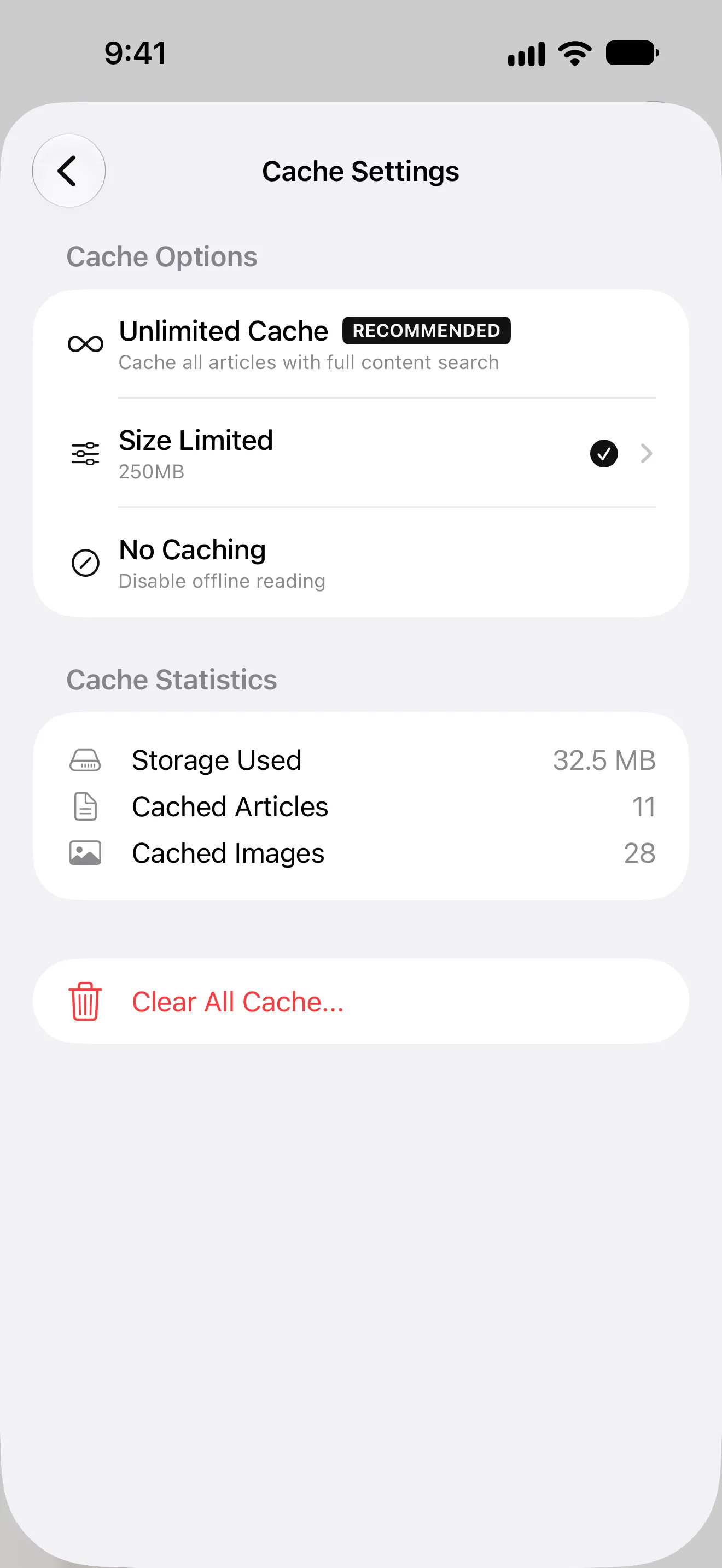
- Offline by design. When you save an article, PagePanda fetches the readable text and supported images and caches them on the device. Our guide to reading offline on iPhone and iPad explains exactly what is stored.
- Your place is saved. Continue Reading brings unfinished articles back where you left off.
- Local-first library. No PagePanda account. Your library lives on the device, with optional iCloud sync for saved items, progress, shelves, tags, highlights, and notes.
- Easy saving from Safari. Use the Share Sheet, the PagePanda Safari extension, or paste a URL.
- Listen when you cannot read. Tap Listen to hear a cached article in an Apple voice on your device.
You do not have to give up Safari. Plenty of people keep Reading List for quick, temporary saves and send longer articles to a read-later app. Our Safari Reading List alternative guide compares the two in detail. For a wider look, see the best read-it-later apps for iPhone, iPad, and Mac.
One honest caveat: PagePanda does not offer a direct Safari Reading List import, and a bookmark export may not include your Reading List. Plan to re-save the articles you care about.
Try PagePanda free on the App Store → For iPhone, iPad, and Mac. No account, no ads.
Frequently asked questions
Why does Safari say I'm offline when opening a Reading List item?
The page was saved as a link but never downloaded for offline use. Turn on Automatically Save Offline (Settings → Apps → Safari on iPhone and iPad; Safari → Settings → Advanced on Mac), then reopen the item while connected so it can download.
Does Safari Reading List work without internet?
Yes, but only for items that were downloaded while you were connected. Saving a page does not guarantee an offline copy unless offline saving is enabled and the download has finished.
Why is my Reading List not syncing from Mac to iPhone?
Check that both devices use the same Apple Account, Safari is turned on in iCloud on both, and the date and time are correct. Then turn Safari sync off, wait a few minutes, and turn it back on. A VPN can also interfere.
Can I recover deleted Safari Reading List items?
Apple's iCloud.com recovery covers bookmarks deleted within the last 30 days, but Apple does not document a separate restore option for Reading List items. Keep important articles in another app or export them if you cannot afford to lose them.
What is the difference between Reading List and bookmarks?
Bookmarks are long-term shortcuts to sites you revisit. Reading List is a queue of pages you intend to read once, with read and unread states and optional offline saving.
What is a good alternative to Safari Reading List?
If you need dependable offline reading, saved progress, highlights, and organization, try a dedicated read-later app. See our best read-it-later apps for iPhone, iPad, and Mac comparison.